Idle Pizza Empire
13,601 spilletider
Spillkontroller
Interact
Fullscreen (page)
Spilldetaljer
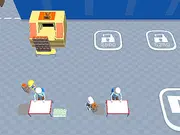
Hva handler Idle Pizza Empire om?
This setup will allow you to:
1. Backend (server.js): A Node.js Express server that receives chat messages from the frontend, sends them to the Google Gemini API, and returns the AI's response.
2. Frontend (
index.html): A static HTML page with a chat interface that sends user messages to your Node.js backend and displays the AI's replies.Step 1: Set up your Backend (Node.js)
First, create a file named server.js (or any .js name) for your backend. This will handle the communication with the Gemini API.
Backend (server.js)
``javascriptBackend server running on port ${port}`);
require('dotenv').config(); // Load environment variables from .env file
const express = require('express');
const bodyParser = require('body-parser');
const { GoogleGenerativeAI } = require('@google/generative-ai');
const cors = require('cors'); // Import the cors middleware
const app = express();
const port = 3000;
// Middleware
app.use(cors()); // Enable CORS for all routes so your frontend can connect
app.use(bodyParser.json()); // To parse JSON bodies from incoming requests
// Initialize Google Generative AI
// Access your API key as an environment variable (e.g., from a .env file)
const genAI = new GoogleGenerativeAI(process.env.GEMINI_API_KEY);
const model = genAI.getGenerativeModel({ model: "gemini-pro" });
// Simple in-memory chat history for a single user session
// For a multi-user app, you'd manage history per user, likely in a database
const chatHistory = [];
app.post('/chat', async (req, res) => {
const userMessage = req.body.message;
if (!userMessage) {
return res.status(400).json({ error: 'Message is required' });
}
try {
// Add user message to history for context
chatHistory.push({ role: "user", parts: [{ text: userMessage }] });
// Start a chat session with the model, providing current history
const chat = model.startChat({
history: chatHistory,
generationConfig: {
maxOutputTokens: 500, // Limit response length
},
});
// Send the user's latest message and get the response
const result = await chat.sendMessage(userMessage);
const responseText = result.response.text();
// Add agent response to history for future turns
chatHistory.push({ role: "model", parts: [{ text: responseText }] });
res.json({ reply: responseText });
} catch (error) {
console.error('Error interacting with Gemini API:', error);
// Clear history on error to prevent bad state in simple example
chatHistory.length = 0;
res.status(500).json({ error: 'Failed to get response from assistant. Please try again or check API key/permissions.' });
}
});
// A simple GET endpoint to confirm the server is running
app.get('/', (req, res) => {
res.send('Gemini Chat Backend is running!');
});
// Start the server
app.listen(port, () => {
console.log(
});
```
Step 2: Create your Frontend (HTML/CSS/JavaScript)
Next, create an index.html file in the same directory as your server.js file. This will be your simple chat interface.
Frontend (index.html)
``htmlHTTP error! status: ${response.status}
<!DOCTYPE html>
<html lang="en">
<head>
<meta charset="UTF-8">
<meta name="viewport" content="width=device-width, initial-scale=1.0">
<title>Gemini Chat Assistant</title>
<style>
body {
font-family: 'Segoe UI', Tahoma, Geneva, Verdana, sans-serif;
margin: 0;
padding: 20px;
background-color: #f0f2f5;
display: flex;
justify-content: center;
align-items: center;
min-height: 100vh;
}
.chat-container {
max-width: 600px;
width: 100%;
background-color: #ffffff;
padding: 25px;
border-radius: 12px;
box-shadow: 0 4px 20px rgba(0,0,0,0.08);
display: flex;
flex-direction: column;
min-height: 500px;
}
h1 {
color: #333;
text-align: center;
margin-bottom: 25px;
font-size: 1.8em;
}
.messages {
border: 1px solid #e0e0e0;
padding: 15px;
flex-grow: 1; /* Allow messages div to take available space */
max-height: 400px;
overflow-y: auto;
margin-bottom: 20px;
border-radius: 8px;
background-color: #fdfdfd;
display: flex;
flex-direction: column;
}
.message {
margin-bottom: 12px;
padding: 10px 15px;
border-radius: 18px;
max-width: 80%;
word-wrap: break-word; /* Ensure long words wrap */
box-shadow: 0 1px 2px rgba(0,0,0,0.05);
}
.user-message {
align-self: flex-end; /* Align to the right */
background-color: #dcf8c6; /* Light green */
color: #333;
border-bottom-right-radius: 4px; /* Sharpen bottom right corner */
}
.agent-message {
align-self: flex-start; /* Align to the left */
background-color: #e9e9eb; /* Light grey */
color: #333;
border-bottom-left-radius: 4px; /* Sharpen bottom left corner */
}
.input-area {
display: flex;
gap: 10px;
}
.input-area input {
flex-grow: 1;
padding: 12px 15px;
border: 1px solid #ced4da;
border-radius: 25px;
outline: none;
font-size: 1em;
transition: border-color 0.3s;
}
.input-area input:focus {
border-color: #007bff;
}
.input-area button {
padding: 12px 25px;
background-color: #007bff;
color: white;
border: none;
border-radius: 25px;
cursor: pointer;
font-size: 1em;
font-weight: bold;
transition: background-color 0.3s ease;
}
.input-area button:hover {
background-color: #0056b3;
}
.input-area button:disabled {
background-color: #a0c9f1;
cursor: not-allowed;
}
</style>
</head>
<body>
<div class="chat-container">
<h1>Gemini Chat Assistant</h1>
<div class="messages" id="messages">
<!-- Initial welcome message -->
<div class="message agent-message">Hello! How can I help you today?</div>
</div>
<div class="input-area">
<input type="text" id="userInput" placeholder="Type your message..." autocomplete="off">
<button id="sendButton" onclick="sendMessage()">Send</button>
</div>
</div>
<script>
const userInput = document.getElementById('userInput');
const sendButton = document.getElementById('sendButton');
const messagesDiv = document.getElementById('messages');
// Function to append messages to the chat interface
function appendMessage(text, className) {
const messageElement = document.createElement('div');
messageElement.classList.add('message', className);
messageElement.textContent = text;
messagesDiv.appendChild(messageElement);
messagesDiv.scrollTop = messagesDiv.scrollHeight; // Auto-scroll to bottom
}
// Function to send a message to the backend
async function sendMessage() {
const messageText = userInput.value.trim();
if (!messageText) return; // Don't send empty messages
appendMessage(messageText, 'user-message'); // Display user message immediately
userInput.value = ''; // Clear input field
sendButton.disabled = true; // Disable button to prevent double-sending
userInput.disabled = true; // Disable input too
try {
// Adjust this URL if your backend is on a different host/port
const response = await fetch('http://localhost:3000/chat', {
method: 'POST',
headers: {
'Content-Type': 'application/json'
},
body: JSON.stringify({ message: messageText })
});
if (!response.ok) {
const errorData = await response.json();
throw new Error(errorData.error ||);Error: ${error.message || 'Could not connect to the assistant.'}`, 'agent-message');
}
const data = await response.json();
appendMessage(data.reply, 'agent-message'); // Display agent's reply
} catch (error) {
console.error('Error sending message:', error);
appendMessage(
} finally {
sendButton.disabled = false; // Re-enable button
userInput.disabled = false; // Re-enable input
userInput.focus(); // Put focus back on input
}
}
// Allow sending message on Enter key press
userInput.addEventListener('keypress', function(e) {
if (e.key === 'Enter' && !sendButton.disabled) {
sendMessage();
}
});
```
Instructions to Run Both Parts:
- Get a Google Gemini API Key:
- Go to [Google AI Studio](https://aistudio.google.com/) or [Google Cloud Console](https://console.cloud.google.com/).
- Create a new project (if necessary).
- Navigate to "API Keys" or "Credentials" and create an API key. This key will start with
AIza.... - Keep this key secure and do not expose it directly in frontend code.
- Project Setup (Backend):
- Create a new directory for your project (e.g.,
gemini-chat-app). - Inside that directory, save the Node.js code as
server.js. - Inside that directory, save the HTML code as
index.html. - Open your terminal or command prompt and navigate into this new directory.
- Initialize a Node.js project:
bash npm init -y - Install the necessary Node.js packages:
bash
npm install express body-parser @google/generative-ai dotenv cors
- Create a new directory for your project (e.g.,
- Environment Variable (
.env):- In the same directory as
server.jsandindex.html, create a new file named.env. - Add your Google Gemini API key to this file like this:
GEMINI_API_KEY=YOUR_GEMINI_API_KEY - Replace
YOUR_GEMINI_API_KEYwith the actual API key you obtained.
- In the same directory as
- Start the Backend Server:
- In your terminal, while still in your project directory, run:
bash node server.js - You should see the message:
Backend server running on port 3000. Keep this terminal window open.
- In your terminal, while still in your project directory, run:
- Open the Frontend:
- Locate the
index.htmlfile in your project directory. - Double-click it, or drag and drop it into any modern web browser (Chrome, Firefox, Edge, Safari).
- You should see the chat interface.
- Locate the
- Chat!
- Type a message into the input field and press
Enteror click the "Send" button.
* Your frontend will send the message to the Node.js backend, which will then use your Gemini API key to communicate with the Google Gemini model. The AI's response will be displayed in the chat window.This setup provides a complete, working example of a full-stack application interacting with the Google Gemini API.
- Type a message into the input field and press
Can we play Idle Pizza Empire on mobile?
No, Idle Pizza Empire is designed for desktop play and works best on computers using a keyboard or mouse.
no
no
Kan vi spille Idle Pizza Empire i fullskjermmodus?
Yes, Idle Pizza Empire can be played in full screen mode for a more immersive experience.
Hvilke spill kan vi prøve neste gang?
Utforsk vår Penger-seksjon og oppdag populære titler som Papa's Pastaria, Fast Food Takeaway, Kit Factory Makeup og Lumber Factory Simulator - alle tilgjengelige for å spille umiddelbart på Y8 Games.
Kategori
Ledelse- og simuleringspill
Lagt til
07 feb 2023
Kommentarer


-

Coffee Life
-
Crowd City
-
Last Moment Opening
-
The Flying Farm Lite
-
Hospital Hustle
-
Sell Tacos
-
Building Empire Tycoon
-
Idle Hotel Empire
-
Chinese Cuisine Chef
-
Panda Kitchen: Idle Tycoon
-
Toy Factory: Arcade Idle
-
Burger Here
-
McDonalds Videogame
-
The Waitress
-
Unfabulous Burger Bustle
-
Tutti Cuti: The Ice Cream Parlour
-
Hot Dog Bush
-
Penguin Diner
-
Family Restaurant
-
Bar B-Que
-
Cuti's Diner
-
Pinkys Pancakes
-
Penguin Diner 2
-
Papa's Freezeria